
Manuais de instruções MaaxTV grátis – leia, descarregue e imprima
1 Manuais
Manuais

Categorias

Comprehensive Guide to MaaxTV Manuals
Introduction
Welcome to the definitive documentation portal for MaaxTV. This guide is designed to assist users in maximizing the functionality of their television entertainment systems. MaaxTV represents a convergence of modern media consumption and intuitive hardware design. Understanding the specific manuals provided for this equipment is crucial for optimal performance and longevity of the device. Whether you are a first-time user or looking to unlock advanced settings, this resource covers all necessary ground to ensure success. We prioritize clarity and ease of use in every section of this documentation to help you get the most out of your investment.
Understanding Your MaaxTV Device
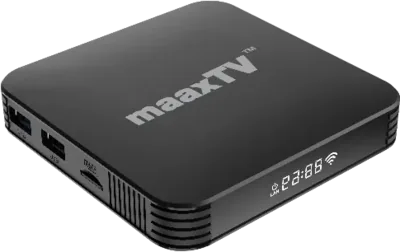
Before diving into setup procedures, it is important to familiarize yourself with the hardware components provided in the box. Typically, a MaaxTV unit comes with the main streaming box, a power adapter, a high-definition HDMI cable, and a remote control. Some models may include batteries and an Ethernet cable for hardwired connections to ensure stability. The device itself features a sleek design intended to blend seamlessly into any living space without being obtrusive. Ports on the back usually include HDMI output, USB connections for media drives or accessories, and a power input jack for the electrical connection. These inputs allow for connectivity with external storage and other peripherals to expand your library. It is essential to handle the device with care to prevent static damage or physical impact that could compromise internal components.
Setup and Installation Process
The initial configuration of the MaaxTV system requires several steps to ensure a smooth experience right out of the box. First, locate a power outlet near your television to plug in the adapter securely to the back of the box. Next, use the provided HDMI cable to connect the device to an available HDMI port on your TV display. Switch the television input source to match the specific port number you selected for the MaaxTV connection. Once the device is powered on, you will see the setup wizard appear on the screen automatically. Follow the on-screen prompts to select your primary language and physical region location.
Connecting to the internet is the next critical phase for full functionality. You can choose between Wi-Fi wireless standards or a wired Ethernet connection for maximum stability. During setup, navigate to the network settings menu and select your wireless network from the available list. Enter the password carefully to avoid connectivity errors that could delay the configuration. If you prefer a wired connection, plug the Ethernet cable directly into the device and your router to bypass signal interference. Once connected, the system will check for software updates automatically. Allow this update process to complete without interruption to ensure you have the latest features and security patches.
Navigating the Interface
The user interface is the primary method of interaction with your MaaxTV system and is designed for ease of access. The main home screen displays tiles for various applications such as movies, television shows, music players, and games. Use the directional pad on the remote control to highlight specific options on the grid. Press the center select button to launch an application or enter a menu. The menu structure is hierarchical, allowing easy access to account settings directly on the main page. A search function is usually available to help you find specific content quickly across multiple platforms without browsing categories.
Remote control buttons generally consist of navigation keys, a home button to return to the start, a back button to leave a screen, and volume controls for the TV sound. Understanding these basic inputs will significantly improve your daily viewing experience. Some remotes feature voice command capabilities to assist in searching for content without typing on a virtual keyboard. If the remote loses connection, check the battery level and ensure there are no obstructions between the remote and the device infrared sensor. Pairing the remote may require holding specific buttons simultaneously as outlined in the quick start guide.
Advanced Features and Customization
MaaxTV offers several advanced features that unlock the full potential of your entertainment hub for personalized settings. Parental controls are essential for households with younger viewers to ensure safe consumption of media. You can set PIN codes to restrict access to mature content ratings or specific applications entirely. This feature provides peace of mind for parents managing household media consumption effectively. Additionally, multiple user profiles can be created to tailor recommendations to individual preferences for every family member. This ensures that the home screen reflects the unique interests of different users without mixing algorithms.
Audio settings can be configured to match your specific home theater setup and speaker configuration. Options often include selecting the output device for HDMI CEC control to allow the TV to control power. You may also adjust equalizer settings to enhance sound quality depending on your attached speaker or soundbar. Video quality settings allow for selection of resolution options such as four k or high dynamic range capabilities for better visuals. It is recommended to check these settings regularly to maintain the best visual experience as new content becomes available on your device.
Security and Privacy
Security is a top priority for the MaaxTV system to protect your personal data and network. The device encrypts data transmission to prevent unauthorized access to your viewing history. Account information is stored securely and requires authentication for major changes like password resets. You should regularly review the privacy settings to control what data is shared for advertising or analytics purposes. Enabling two-factor authentication adds an extra layer of protection to your account settings if the feature is available in your region. Keeping your system updated ensures that any vulnerabilities are patched promptly by the engineering team.
Troubleshooting Common Issues
Despite reliable design, users may encounter occasional technical difficulties during normal operation. If the device does not turn on, check the power cable and outlet first to rule out electrical issues. A blank screen usually indicates a power issue or an incorrect HDMI input selection on the television display. If there is audio but no video, try reconnecting the HDMI cable or changing the output resolution settings in the menu. Network connectivity problems are another common concern for streaming devices. Restarting the router and the MaaxTV device often resolves temporary connection drops or latency issues.
Remote control unresponsiveness can sometimes be fixed by removing and reinserting the batteries to reset the power cycle. Dust accumulation on the infrared sensor can also interfere with signal transmission from the remote. If the device becomes unresponsive or freezes completely, perform a hard reset by holding the power button for a specified duration. Always consult the specific troubleshooting section of your model manual for precise reset instructions to avoid data loss. Factory resets should be used as a last resort as they will erase all downloaded apps and saved preferences permanently.
Maintenance and Safety
Regular maintenance helps ensure the longevity of the MaaxTV hardware. Keep the vents clear of dust to allow for proper airflow and cooling of internal components. Do not place the device on soft surfaces like beds or sofas where it can overheat. Clean the exterior housing with a dry cloth to avoid liquid damage or static buildup. It is advisable to unplug the device from the mains power during lightning storms to prevent damage from power surges. Proper ventilation is necessary to prevent overheating during extended use sessions that push the processor limits.
Support and Warranty Information
MaaxTV stands behind the quality of its products with comprehensive support channels for global users. Contact information is typically located on the official website or printed in the documentation box included with the purchase. Phone hotlines and email support provide direct assistance for complex technical issues that require expert intervention. Live chat options may be available for immediate help during standard business hours to resolve quick questions. It is advisable to have your serial number ready when contacting support to expedite the verification process.
Warranty coverage usually lasts for one year from the date of purchase and covers manufacturing defects. This coverage protects against hardware malfunctions that occur under normal operating conditions. Keep your original receipt as proof of purchase to validate warranty claims if service is needed. Registering your device online often extends benefits or provides early access to new beta features. Safety guidelines are also included to ensure the device operates within safe temperature and electrical limits strictly.
Conclusion
Proper management of your MaaxTV equipment ensures a high-quality entertainment experience for years to come. Reference this guide and the official documentation whenever questions arise regarding setup or operation of the system. Regular updates and maintaining good connection habits will keep the system performing at its peak efficiency. We hope this overview has clarified the capabilities and maintenance requirements of your MaaxTV system. Enjoy your favorite content with confidence and ease.
Pesquisar por 67.732 Manuais online


Digite a marca ou modelo