Manual.ly Logo

HP Omen Sequencer Manual

0,0 · 0 Avaliações

Manual em PDF · 2 Páginas

Português

M: OA-GPT-5-NAN
página

/ 2

Loading...
5ab1d96e3fe1d1e9349e55f46e2e324b4e1a page 2
Om du vill hämta programvaran till
datorn väljer du Start och därefter
Store. Sök efter OMEN Command
Center och hämta därefter appen.
Om du vill ha mer information
om hur du programmerar
tangentbordet kan du gå till
http://www.hp.com/support
och följa anvisningarna
för att hitta din produkt.
Välj sedan Användarhandböcker.
หากต
้
องการดาวน
์
โหลดซอฟต
์
แวร
์
ให
้
เล
ื
อก เร
ิ
่
ม บนคอมพ
ิ
วเตอร
์
ของค
ุ
ณ
และจากน
ั
้
นเล
ื
อก Store (ร
้
านค
้
า)
ท
�
าการค
้
นหา OMEN Command Center
และจากน
ั
้
นให
้
ดาวน
์
โหลดแอป
ส
�
าหร
ั
บข
้
อม
ู
ลเพ
ิ
่
มเต
ิ
มเก
ี
่
ยวก
ั
บการ
ต
ั
้
งโปรแกรมแป
้
นพ
ิ
มพ
์
ให
้
ไปท
ี
่
http://www.hp.com/support
และปฏ
ิ
บ
ั
ต
ิ
ตามค
�
าแนะน
�
าในการค
้
นหา
ผล
ิ
ตภ
ั
ณฑ
์
ของค
ุ
ณ จากน
ั
้
นเล
ื
อก
User Guides (ค
ู
่
ม
ื
อผ
ู
้
ใช
้
)
Yazılımı indirmek için
bilgisayarınızda Başlat menüsünü
ve ardından Mağaza menüsünü
seçin. OMEN Command Center
öğesini aratıp uygulamayı indirin.
Klavyeyi programlama
hakkında daha fazla bilgi için
http://www.hp.com/support
adresine gidin ve yönergeleri
izleyerek ürününüzü bulun. Sonra
Kullanıcı Kılavuzları öğesini seçin.
Щоб завантажити програмне
забезпечення на комп’ютер,
натисніть кнопку Пуск (Пуск) і
виберіть пункт Магазин (Магазин).
Знайдіть програму OMEN
Command Center і завантажте її.
Щоб переглянути додаткову
інформацію щодо програмування
клавіатури, перейдіть на веб-
сторінку http://www.hp.com/support
і дотримуйтеся інструкцій з
пошуку пристрою. Потім виберіть
пункт Руководства пользователя
(Посібники користувача).
컴퓨터에 소프트웨어를
다운로드하려면 시작을 선택한
다음 스토어를 선택합니다. OMEN
Command Center를 검색한 다음
응용프로그램을 다운로드합니다.
키보드 프로그래밍의 경우는
http://www.hp.com/support
페이지로 이동하여 지침에 따라
제품을 찾으십시오. 그 다음, 사용
설명서를 선택합니다.
要下载软件,请在计算机上选
择开始,然后选择商店。搜索
OMEN Command Center,然后下
载应用程序。
有关对键盘编程的更多信息,请
转到 http://www.hp.com/support ,
并按照说明查找您的产品。然后
选择用户指南。
若要下載軟體,請在您的電腦上
選取開始,然後選取市集。搜尋
OMEN Command Center,接著下
載應用程式。
如需更多關於如何程式
化鍵盤的資訊,請前往
http://www.hp.com/support ,並依
照指示尋找您的產品。然後選取
使用指南。
A szoftver letöltéséhez válassza
számítógépén a Start, majd az
Áruház elemet. Keressen rá az
OMEN Command Center kifejezésre,
majd töltse le az alkalmazást.
A billentyűzet programozásával
kapcsolatos további
információkért látogasson el a
http://www.hp.com/support oldalra,
és az utasításokat követve válassza
ki a terméket. Ezután válassza a
Használati útmutatók pontot.
Als u de software wilt downloaden
op uw computer, selecteert u
achtereenvolgens Start en Store.
Zoek OMEN Command Center en
download de app.
Ga voor meer informatie over
het instellen van het toetsenbord
naar http://www.hp.com/support
en volg de instructies om uw
product te vinden. Selecteer daarna
Gebruikershandleidingen.
For å laste ned programvaren på
datamaskinen, velg Start og velg
Store. Søk etter OMEN Command
Center, og last så ned appen.
For mer informasjon om å
programmere tastaturet går du
til http://www.hp.com/support
og følger instruksjonene for å
finne ditt produkt. Velg deretter
Brukerhåndbøker.
Aby pobrać to oprogramowanie,
wybierz na komputerze menu
Start, a następnie Sklep. Wyszukaj
oprogramowanie OMEN Command
Center, a następnie pobierz aplikację.
W celu uzyskania informacji o
programowaniu klawiatury przejdź na
stronę http://www.hp.com/support
i postępuj zgodnie z wyświetlanymi
instrukcjami, aby znaleźć swój
produkt. Następnie wybierz pozycję
Instrukcje obsługi.
Para transferir o software, no seu
computador, selecione Iniciar e,
em seguida, selecione Store (Loja).
Procure por OMEN Command Center
e transfira a aplicação.
Para mais informações sobre
como programar o teclado, vá a
http://www.hp.com/support e siga
as instruções para localizar o seu
produto. Em seguida, selecione
Manuais do Utilizador.
Para baixar o software, selecione
Iniciar, em seu computador,
e selecione Store. Procure o
OMEN Command Center e baixe o
aplicativo.
Para mais informações sobre
como programar o teclado, acesse
http://www.hp.com/support e siga
as instruções para localizar seu
produto. Em seguida, selecione
Manuais do usuário.
Pentru a descărca software-
ul, la computer, selectaţi Start,
apoi selectaţi Magazin. Căutaţi
OMEN Command Center, apoi
descărcaţi aplicaţia.
Pentru mai multe informaţii despre
programarea tastaturii, mergeţi la
http://www.hp.com/support şi urmaţi
instrucţiunile pentru a găsi produsul.
Apoi, selectaţi User Guides (Ghiduri
pentru utilizatori).
Чтобы загрузить программное
обеспечение, на своем компьютере
нажмите кнопку Пуск и выберите
Магазин. Воспользуйтесь
поиском, чтобы найти
OMEN Command Center, и загрузите
приложение.
Для получения дополнительной
информации о программировании
клавиатуры перейдите по адресу
http://www.hp.com/support и
следуйте инструкциям, чтобы найти
свое устройство. Затем выберите
пункт Руководства пользователя.
Ak chcete prevziať softvér, v počítači
vyberte položku Štart a potom
položku Store (Obchod). Vyhľadajte
a prevezmite aplikáciu OMEN
Command Center.
Ďalšie informácie o programovaní
klávesnice nájdete na
http://www.hp.com/support a podľa
pokynov vyhľadajte svoj produkt.
Potom vyberte položku User Guides
(Používateľské príručky).
Za prenos programske opreme v
računalniku izberite Začetni meni,
nato pa izberite Trgovina. Poiščite
OMEN Command Center in prenesite
aplikacijo.
Za dodatne informacije o
programiranju tipkovnice
pojdite na spletno mesto
http://www.hp.com/support in
s pomočjo navodil poiščite svoj
izdelek. Nato izberite User Guides
(Uporabniški vodniki).
Lataa ohjelmisto tietokoneellesi
valitsemalla Käynnistä ja sitten
Kauppa. Kirjoita hakukenttään OMEN
Command Center ja lataa sovellus.
Saat lisätietoa näppäimistön
ohjelmoinnista siirtymällä osoitteeseen
http://www.hp.com/support
ja etsimällä tuotteesi ohjeiden avulla.
Valitse sitten Käyttöoppaat.
Da biste preuzeli softver, na računaru
izaberite „Start“, a zatim izaberite
stavku „Prodavnica“. Potražite
„OMEN Command Center“, a zatim
preuzmite aplikaciju.
Za više informacija o
programiranju tastature idite na
http://www.hp.com/support i pratite
uputstva da biste pronašli svoj
proizvod. Zatim izaberite stavku
„Vodiči za korisnike“.
*L11001-B21*
L11001-B21
© Copyright 2018 HP Development
Company, L.P.
The information contained herein is subject to
change without notice. The only warranties for
HP products and services are set forth in the
express warranty statements accompanying
such products and services. Nothing herein
should be construed as constituting an
additional warranty. HP shall not be liable
for technical or editorial errors or omissions
contained herein.
First Edition: April 2018

Converse com o manual do seu HP Omen Sequencer através de IA

Obtenha respostas instantâneas de IA a partir do manual do seu HP Omen Sequencer

Pergunte qualquer coisa sobre o HP Omen Sequencer. As respostas vêm deste manual, com as páginas nas quais se baseiam.

Faça uma Pergunta

0/1000

Você recomenda Omen Sequencer?

Sim Não

Perguntas Frequentes

A

This version uses BLUE switches. They provide tactile resistance and an audible click at activation, making presses easy to feel and hear.

Esta resposta foi útil?

A

Yes. OMEN Command Center supports static zones, gaming-oriented layouts, custom colors, preset themes, and animated effects such as wave, breathing, raindrops, and ghosting.

Esta resposta foi útil?

A

The keyboard has five dedicated P-keys, P1 through P5. A macro can also be assigned to up to three keys, with each macro limited to 47 keystrokes.

Esta resposta foi útil?

A

You can create key combinations, recorded multi-key sequences with delay options, launch actions for apps or games, and text macros for inserting custom messages.

Esta resposta foi útil?

A

Full software configuration requires Windows 10 64-bit version 1709 or later. The software may already be installed on some compatible computers.

Esta resposta foi útil?

A

Yes. Fn plus number keys selects lighting effects, Fn + F11 changes LED brightness, and Fn + F12 toggles the Windows key. These shortcuts are especially useful on Windows 7.

Esta resposta foi útil?

M: gpt-5.6-terra

Vantagens e Desvantagens

Vantagens

  • Clicky BLUE switches provide pronounced tactile and audible feedback for gaming and typing.
  • Per-key-zone RGB customization includes static layouts, presets, custom colors, and animated effects.
  • Five P-keys support macros, text actions, app launching, and recorded multi-key sequences.
  • Fn shortcuts quickly control lighting modes, LED brightness, and Windows key lock.
  • USB connectivity provides a straightforward wired gaming setup.
VS

Desvantagens

  • BLUE switches can be loud, which may disturb people in quiet or shared environments.
  • Full OMEN Command Center configuration requires Windows 10 64-bit version 1709 or later.
  • Macro sequences are limited to 47 keystrokes each.
  • Only five dedicated P-keys are available for direct macro assignments.
  • Windows 7 users rely on keyboard shortcuts rather than the full software feature set.
M: gpt-5.6-terra

Produto Especificação

Layout

UK

Tipo

mecânico-óptico

Iluminação

RGB, cada tecla individualmente

Nível da Tecla

elevado, sem moldura

Formato da Tecla

regular

Forma da Tecla

côncavo

Teclado Numérico

Padrão

Bloco de Cursor

deslocado

Teclas de Controle

Padrão

Tecla Enter

Padrão

Tecla Delete

Padrão

Indicador de Status

Caps Lock, Num Lock, Scroll Lock

Descanso de Pulso

N/D

Material da Carcaça

Metal

Cor da Carcaça

cor sólida, preto

Acabamento da Tecla

cor sólida, preto

Legenda da Tecla

cor sólida, branco (translúcido)

Conexão

com fio (2 m), 2x USB-A 2.0

Fonte de Alimentação

USB

Dimensões (LxAxP)

473x38x169 mm

Peso

1,12 kg

Características Especiais

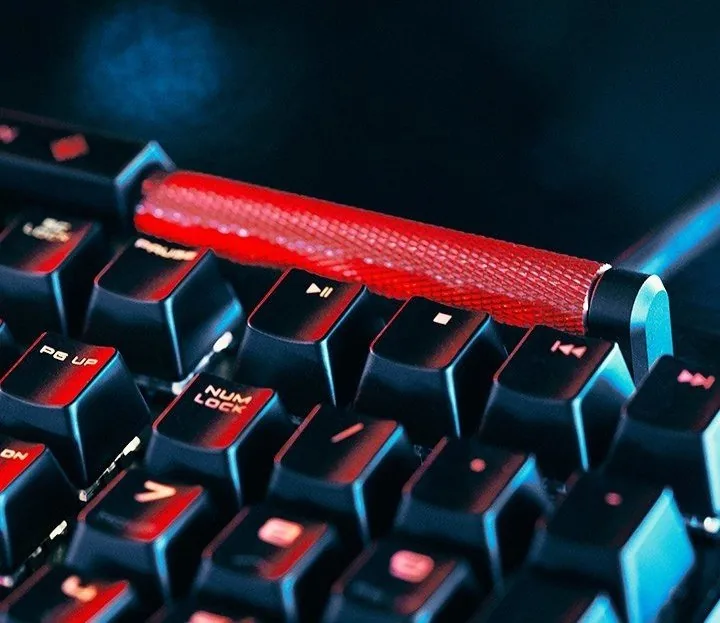
9 Teclas Multimídia (5 programáveis), 1x Controle Rotativo de Volume (Scroll Wheel, superior direito), Anti-Ghosting (N-Key-Rollover), Hub USB (1x USB-A 2.0), Tecla FN

M: GO-GEM-FL-25

Produto Descrição

HP Omen Sequencer LEDs RGB BLUE Switches USB UK Manual

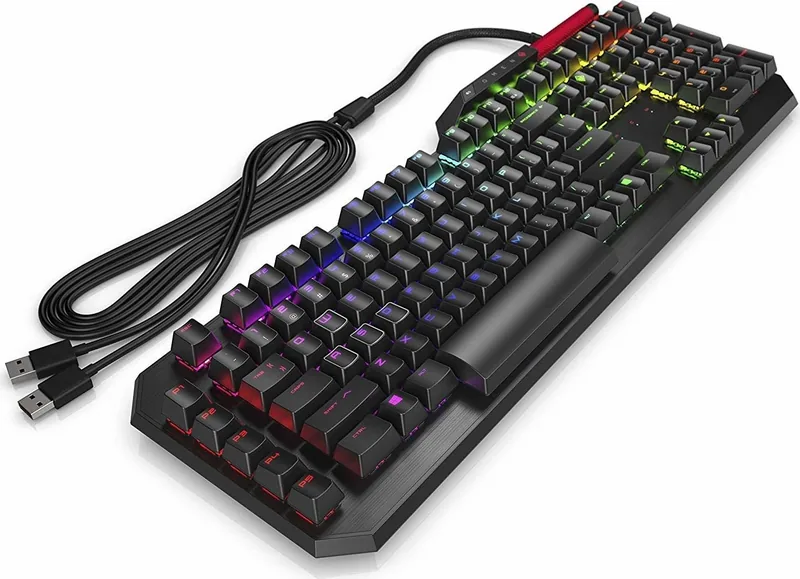
O HP Omen Sequencer é um teclado mecânico gamer de alto desempenho projetado para precisão, personalização e iluminação RGB marcante. Construído com switches táteis BLUE, LEDs RGB completos e layout USB Reino Unido, combina hardware robusto com controle de software intuitivo para atender às necessidades de jogadores competitivos e criadores. O OMEN Command Center permite personalização profunda de zonas de iluminação, efeitos animados, programação de macros e atalhos — tornando o Sequencer adaptável a diferentes estilos de jogo e fluxos de trabalho.

Design e principais características

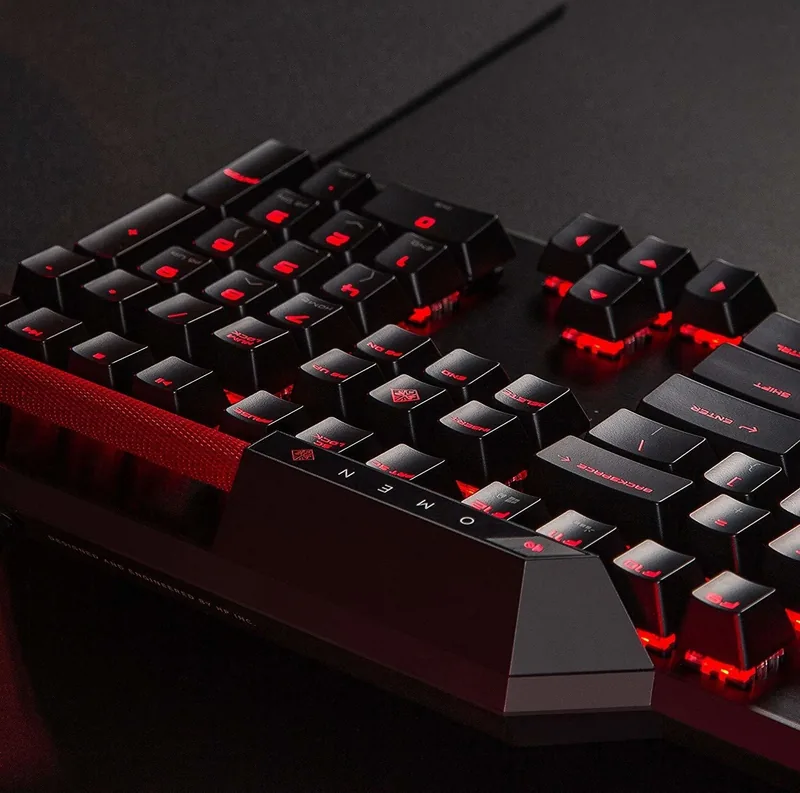
O Sequencer possui switches mecânicos BLUE com clique que fornecem feedback tátil satisfatório e atuação audível, ideal para digitadores e jogadores que preferem sinais claros de atuação. O layout UK do teclado suporta posicionamento regional das teclas e conexão USB padrão para entrada confiável e com baixa latência. Os LEDs RGB em matriz completa permitem iluminação por zonas ou por tecla, com modos estáticos e animados para criar uma presença visual distinta na sua mesa.

O OMEN Command Center integra controles específicos do teclado: modo estático para modelos de cores fixas e personalização multizona; modo de animação com efeitos como Color Cycle, Starlight, Breathing, Ripple, Wave e Raindrops; e THEMES predefinidos ou paletas de cores personalizadas. Velocidade, tamanho do ripple e intensidade são ajustáveis para sincronizar a iluminação com preferência ou eventos do jogo.

Macros e personalização de fluxo de trabalho

O suporte a macros inclui cinco slots de macro atribuíveis (P1–P5) com até 47 ações cada, cobrindo atalhos, gravações multitecla, iniciadores de aplicativos e macros de texto para automação de chat. O software grava pressionamentos de teclas e cliques do mouse com opções de atrasos gravados ou fixos, contagens de loop e sequências editáveis. Macros podem ser arrastadas para teclas, atribuídas a múltiplas teclas e editadas posteriormente — simplificando tarefas repetitivas e sequências de entrada complexas.

Controles rápidos e acessibilidade

Combinações de teclas de atalho dedicadas usando a tecla fn permitem que os usuários alternem rapidamente efeitos de iluminação (Color Cycle, Starlight, Breathing, Ghosting, Ripple, Wave, Line Streak, Raindrop), bloqueiem a tecla Windows e alterem a intensidade do LED. A HP enfatiza acessibilidade e design inclusivo: a documentação e os recursos destacam compatibilidade com tecnologias assistivas, conformidade com normas (WCAG, Section 508, EN 301 549) e orientações para selecionar ferramentas assistivas.

Notas práticas

O teclado requer Windows 10 (64-bit) versão 1709 ou posterior para plena funcionalidade do software; alterações básicas de iluminação podem ser controladas via teclas de atalho em sistemas mais antigos. Tutoriais dentro do aplicativo guiam usuários iniciantes pelas funcionalidades multizona e de macro. Atualizações de firmware e software são recomendadas para acessar os presets mais recentes e melhorias de compatibilidade.

Notas

  • SO compatível para recursos completos: Windows 10 (64-bit) 1709 ou posterior.
  • Macros limitadas a 47 ações por macro; até cinco slots P-key.
  • O primeiro uso das abas Multizone e Macro inicia tutoriais no aplicativo.
M: OA-GPT-5-NAN

© Copyright 2026 Manual.ly